
Ultimate Gaming Room Setup Guide (2026)
Executive Summary
Choose an ergonomic space with plenty of room for your PC/console setup, desk, and seating.
Select high-performance equipment: PC or console(s), multi-monitor or large display, and quality peripherals.
Invest in a sturdy desk and an ergonomic gaming chair for comfort during long sessions.
Use RGB or customizable lighting and a good audio system to create an immersive atmosphere.
Implement tidy cable management and ensure proper ventilation to protect your gear.
Personalize with decor, themes, and accessories to make the space inspiring and functional.
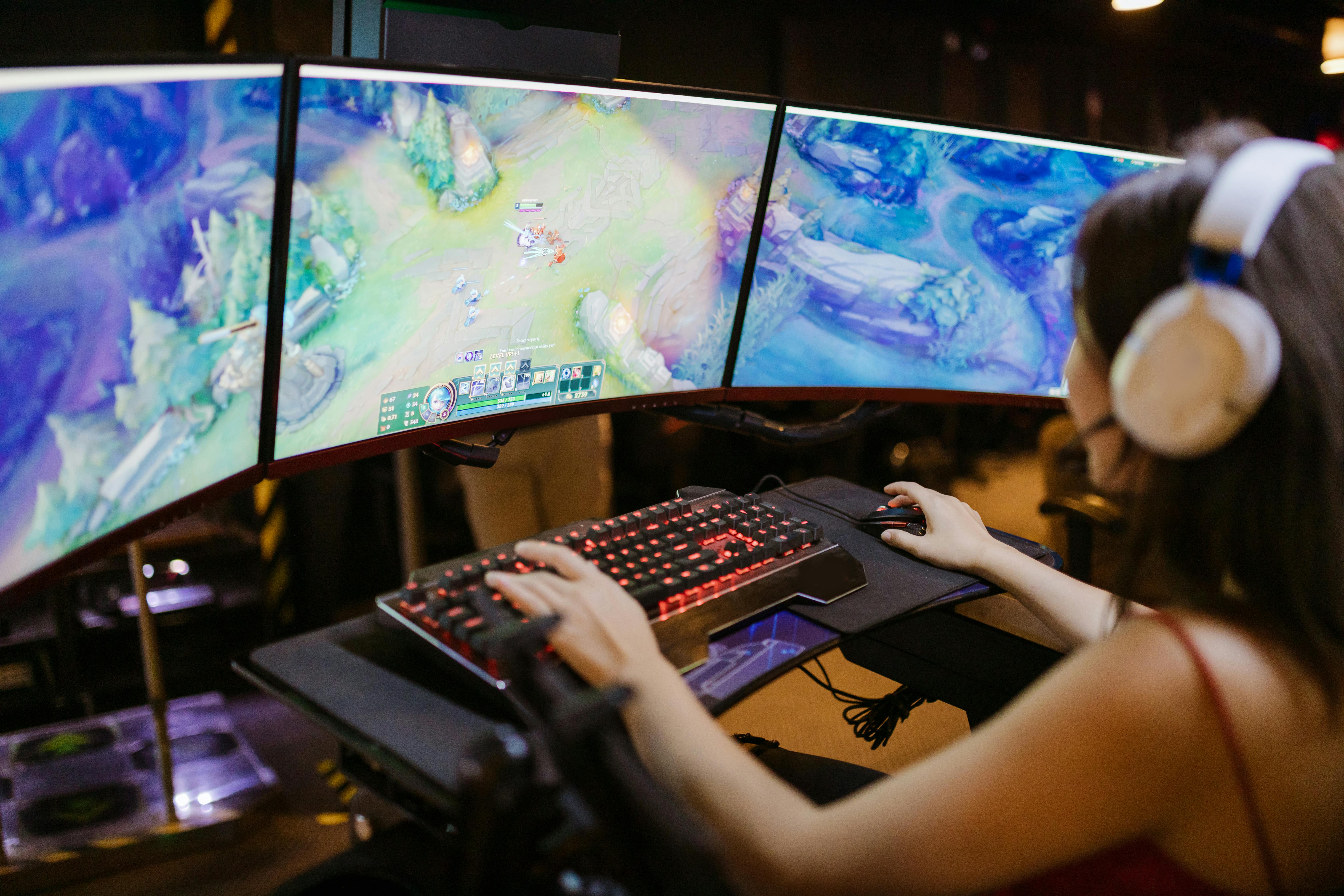
Photo: RDNE Stock project / Pexels
Why Your Gaming Room Matters
A dedicated gaming room is more than just a place to play: it’s a sanctuary for focus, fun, and performance. A well-designed gaming environment improves comfort, reduces fatigue, and can even boost your in-game results. Good lighting prevents eye strain, a comfortable chair prevents back pain, and a top-tier PC or console setup allows you to enjoy games at their full potential. Gamers and gaming center owners alike understand that the right room setup can elevate the entire gaming experience, making sessions more enjoyable and memorable.
Pro Tip: Optimize your room lighting for both comfort and style. Dimmable overhead lights plus RGB LED strips behind monitors keep your eyes comfortable and your setup looking futuristic.
Choosing the Right Space
Select a room that fits your gear and needs. Measure your space before shopping for furniture – a cramped desk with too many monitors or a chair that barely turns can ruin ergonomics. Small rooms can still work: place your desk against a wall or corner to save space. Larger rooms allow multiple stations (e.g. one for gaming, another for streaming or seating) and even couches or bean bags for console play. Consider dual use: if the room doubles as an office or study, plan for hiding cables and easily switching modes. Natural light is nice but avoid glare on screens; use blackout curtains for daytime gaming or streaming.
Essential Gaming Desk
Your gaming desk is the central hub. Look for a sturdy desk with enough surface area for your monitors, keyboard, mouse, and any consoles or controllers. Popular options include L-shaped desks or large rectangular desks with extra shelves. Built-in features like headset hooks, cable cutouts, and elevated monitor stands keep things organized. Height-adjustable or sit-stand desks are increasingly popular in 2026 – they allow you to switch positions and improve circulation during long sessions. Make sure your desk height aligns with your chair so your arms form a natural 90° angle at the keyboard. For endurance gaming, a desk pad can unify your mouse and keyboard area.
Gaming Desk Comparison Model Type Features Price Eureka Ergonomic L60 L-shaped Built-in RGB strip, headphone hook, large surface $349 Secretlab Magnus Pro X-shaped Wireless charging, steel frame, cable tray $799 Autonomous SmartDesk 2 Sit-Stand Electric lift, adjustable height, programmable memory $499 Arozzi Arena Gaming Rectangular Full-surface mouse pad, cable keeper, water-resistant $399
Comfortable Gaming Chairs
A quality gaming chair is crucial for long sessions. Look for high-back chairs with good lumbar support and adjustable armrests. In 2026, popular picks include the Secretlab Titan Evo 2022 (customizable padding and 4D arms) and premium ergonomic chairs like the Herman Miller x Logitech Embody. These support proper posture and reduce strain. Budget options (e.g. the RESPAWN 110 or AutoFull Hunter) use breathable mesh or PU leather and still offer tilt and height adjustment. Make sure your feet rest flat on the floor (or on a footrest) and your eyes are level with the top third of your monitor for ideal posture.
Gaming Chair Comparison Model Material Features Price Secretlab Titan Evo 2022 PU Leather / SoftWeave 4D armrests, adjustable lumbar, multi-tilt $459 Herman Miller Embody Mesh Fabric Highly ergonomic, spinal support, premium $1,595 RESPAWN 110 Bonded Leather Adjustable headrest, lumbar support, footrest $159 AutoFull Hunter PU Leather Sturdy steel frame, lumbar pillow, 180° recline $299
Monitors vs. Televisions
For PC gaming, dual or triple monitor setups are common. Gamers often choose 27" or 32" monitors with 1440p or 4K resolution and high refresh rates (144Hz+). As of 2026, models like the ASUS ROG Swift OLED (4K 240Hz) and LG 27GP850 (1440p 165Hz IPS) are widely praised for smooth gameplay and vivid color. For consoles or party gaming, a large TV or projector (4K HDR, 60Hz or 120Hz) can fill a room. Remember, monitors sit inches from your eyes and often include features like G-Sync/FreeSync for PC, whereas TVs are viewed from a distance and may have variable latency modes. Whichever you choose, position screens at eye level and distance your chair so you can see all displays without neck strain.
Gaming Monitor Comparison Model Size & Panel Max Refresh Resolution Price ASUS ROG Swift OLED PG27UCDM 27" OLED 240 Hz 3840×2160 (4K) $1,599 LG 27GP850 27" IPS 165 Hz 2560×1440 (QHD) $499 Dell S2721DGF 27" IPS 165 Hz 2560×1440 (QHD) $429 AOC 24G2SP 24" IPS 165 Hz 1920×1080 (FHD) $199
PC vs. Console
If you’re a PC gamer, ensure your room can house a gaming rig. Desktop PCs can have multiple monitors, a tower with fans, and gaming accessories. If you game on consoles (like PlayStation 5 or Xbox Series X), plan for comfy living room seating facing a large screen, with console storage nearby. Modern gaming rooms often include both: a dedicated desk space for PC with mechanical keyboards and aim controllers, plus a couch and TV for console titles. Sound and space requirements differ: PCs often use headsets or desk speakers, while console setups may favor surround sound systems. Ultimately, tailor the room to the platform you use most, or invest in dual setups for maximum versatility.
RGB and Ambient Lighting
Dynamic lighting is a game-changer for your mood. In 2026, addressable RGB LED strips, smart bulbs, and backlights are standard. Install LED strips behind your desk, under shelves, or around room edges to add color. Sync these lights with your game or music for immersion (many PC and console setups support software sync like Razer Chroma or Philips Hue). Combine ambient RGB with normal lighting: have a bright lamp for reading menus and dim overhead lights for atmosphere. For example, place a dimmable overhead light to reduce screen glare and use RGB lamps for accent. Proper lighting prevents eye strain and makes even late-night gaming sessions more comfortable.
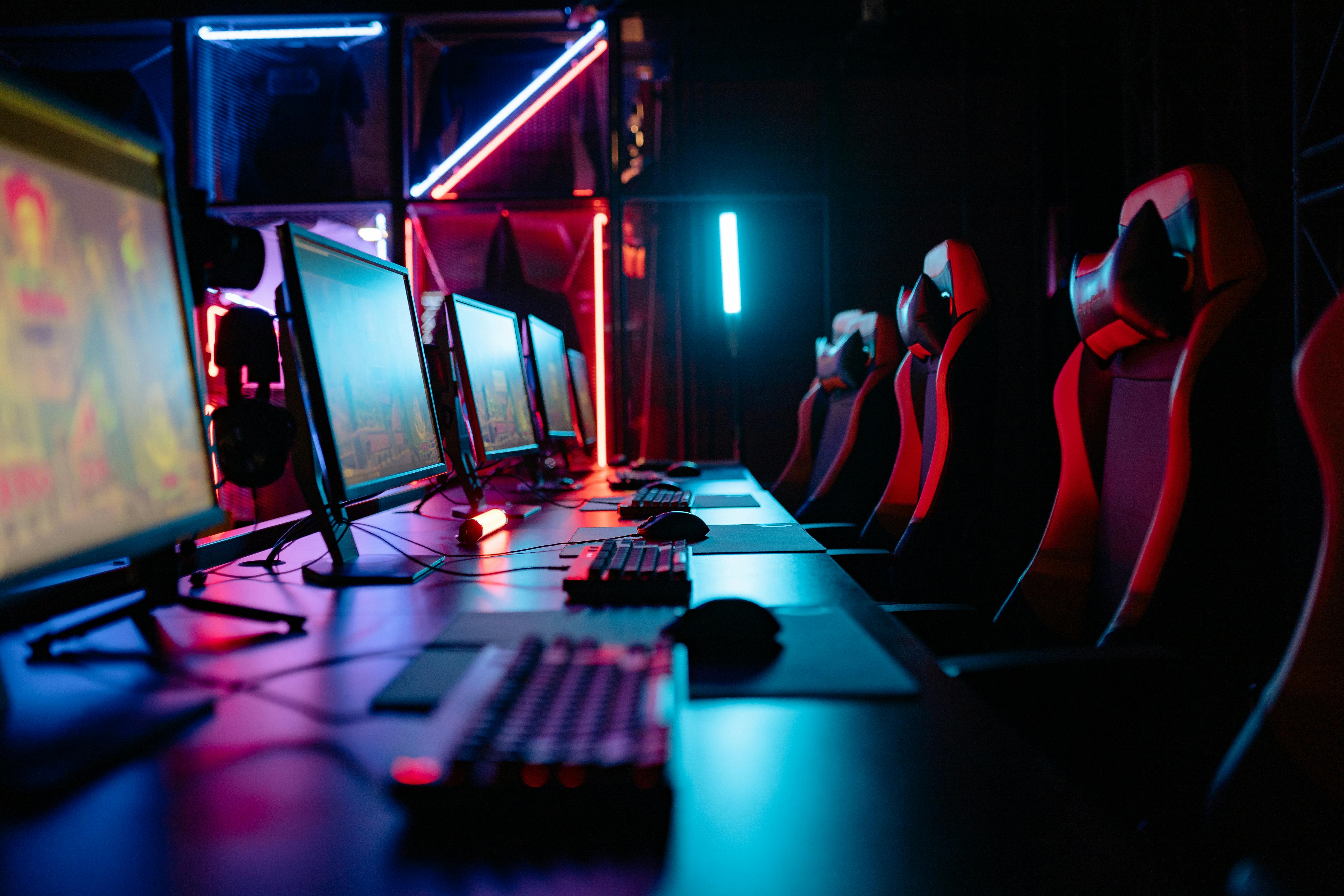
Photo: Yan Krukau / Pexels
Lighting Tip: Use a mix of direct and indirect lighting. LED strips behind your monitors and a floor lamp with a soft white bulb can create depth while keeping your eyes rested.
Cable Management
Don't let cables ruin the look and safety of your setup. Route cables behind the desk or along the walls. Use adhesive clips or zip-ties to keep power cords and data cables bundled neatly. A simple under-desk tray can hold your power strip and excess cable length. For a clean look, match cable color to wall or desk color (black or white). If your keyboard/mouse cables are long, use a spring or bungee clamp on the desk to keep them taut. Rechargeable wireless controllers and peripherals can also drastically reduce wires. Good cable management makes maintenance easy and your setup look polished.
Bundle cables with Velcro straps or zip ties
Mount power strips on or under the desk
Route cables through wall channels or through holes in the desk
Use wireless peripherals (controllers, keyboard, mouse) when possible
Label each cable with tags or colored tape for easy identification
Audio and Sound Setup
Immersive sound is key. If you have the space, set up a surround sound speaker system or quality soundbar for console gaming and movies. Position speakers so that they face the seating area and avoid pushing them into corners (which can cause bass boom). If desk space is limited, invest in a high-quality gaming headset (with 7.1 virtual surround) for competitive play. For PC gamers, a good stereo speaker set on the desk can also work. Consider acoustic foam panels if the room echoes (especially if it has hard floors). Good acoustics and volume control will prevent feedback and keep communication clear during multiplayer sessions.
Streaming and Recording Corner
Many gamers also stream or record content. Designate a portion of your desk for a webcam, microphone (on a boom arm), and lighting (like a ring light or softbox) facing your chair. Keep clutter off this area so your background (posters, shelves) is tidy and thematic. Use a neutral wall or add a custom green screen or LED backdrop for professional visuals. If you stream in the same room, a second camera angle (showing your setup or reactions) adds interest. Make sure your desk can handle a tripod or shelf for lighting above the main monitor. Cable-manage these extras too: clip webcam and mic cables to the desk edge or inside monitors to hide them.
Decor and Personalization
Make the room yours. Common themes include sci-fi, retro arcade, anime, esports, or minimalist high-tech. Hang framed posters or canvases of favorite games on the walls. RGB color-changing panels shaped like polygons or your favorite game logo can be eye-catching. Use a gaming-themed rug or LED-lit posters to tie the room together. Add practical decor: headphone stands, figurines on shelves, or a mini-fridge stocked with drinks. Plants or soft fabrics (rug, cushions) can warm up a mostly black/metal gaming setup. Remember balance: too much clutter will distract, but a few statement pieces personalize the space.

Photo: John Petalcurin / Pexels
Budget vs. Luxury Setups
Your budget greatly affects choices. On a tight budget (e.g. under $500), focus on core needs: a good monitor or used TV, a basic gaming chair, and a simple desk. You can use a normal desk with a DIY cable tray and a standard office chair with a cushion for lumbar support. Entry-level gaming PCs or last-gen consoles (PS4/Xbox One) can handle most games at medium settings. On the other hand, a luxury build (several thousand dollars) might include a high-end gaming PC with custom water cooling, ultra-wide 3440×1440 or 4K monitors at 240Hz, racing-style chairs, and fully integrated smart home lighting. Nearly every component (like keyboards, mice, chairs) has pro-grade variants in the luxury range. Determine what aspects of the setup you value most, then allocate budget accordingly (for example, splurge on a top monitor and save on desk accessories).
Hot Tip: For a budget-friendly high-performance PC, consider used or last-gen graphics cards and trade-offs like a single curved ultrawide monitor (instead of dual monitors) to save space and cost.
Mistakes to Avoid
Poor ergonomics: Don’t skip a good chair or the correct desk height. Cheap chairs or desks that are too low/high will cause back and neck pain.
Lack of ventilation: Cramming multiple computers without airflow will cause overheating. Leave space around PCs and clean dust filters regularly.
Cluttered cables: Tangled wires not only look bad but can be a tripping hazard. Organize cables early in the setup process.
Ignoring lighting: Relying only on your screen’s light can strain eyes. Always have ambient room lighting for comfort.
Overdoing decor: An over-decorated room can feel cramped or distracting. Pick a cohesive theme and stick to a few statement pieces.
Conclusion
Building the ultimate gaming room is a balance of performance, comfort, and personal style. In 2026, you can leverage advanced tech (high-refresh monitors, smart lighting) and ergonomic design to create a space that looks cool and supports long gaming sessions. Start with a solid foundation: the right room, desk, and chair. Add the tech (PC/console, monitors, sound) and then customize with lighting, decor, and organization. Keep cables tidy and comfort first. With the tips above, you’ll be equipped to set up a magazine-quality gaming room. For more gear guides and setup ideas, explore our related articles below:
Best Gaming Chairs Best Gaming Desks PS5 Setup Ideas Xbox Setup Ideas
FAQs
What do I need to set up a gaming room?
At minimum, you need a powerful gaming system (PC or console), a display (monitor or TV), a stable desk, a comfortable chair, and good lighting. Accessories like a mechanical keyboard, gaming mouse, quality headset/speakers, and cable management tools help complete the setup. Ensure your room has good ventilation and enough space for movement.
How can I improve my gaming room on a budget?
Focus on ergonomics and fundamental upgrades first. Use an existing desk and add a desk pad. Get at least a mid-range monitor (144 Hz, 1080p or 1440p) and a decent used chair or cushion. Reuse old speakers or get an affordable soundbar. Add DIY LED strips behind your monitor. Improving cable management and lighting goes a long way even with minimal spending.
What is the ideal monitor setup for competitive gaming?
Competitive gamers often prefer dual monitors (for game + communication/music) or a single ultra-fast monitor. A 24–27” panel with at least 144 Hz (240–360 Hz if possible) and low response time is recommended for fast FPS games. 1080p resolution allows the highest refresh rates. Choose an IPS or OLED panel for color accuracy, and enable adaptive sync (G-Sync/FreeSync) to avoid screen tearing.
How do I prevent eye strain in a gaming room?
To reduce eye strain, use balanced lighting: avoid total darkness or extreme brightness. Position monitors at eye level about an arm’s length away. Use ambient lighting (like bias lighting behind screens) to reduce contrast. Take regular breaks (20-20-20 rule: every 20 minutes look 20 feet away for 20 seconds). Consider blue-light filter screens or glasses if you game late at night.